Social Interactions and Aggression in Drosophila melanogaster

Background
behaviorScoreR is a keyboard-driven video scoring tool for animal behavior. A manual scorer watches pre-recorded animal behavior videos and presses assigned keys to log specific behaviors with timestamps.
The app supports two behavior types:
- Discrete behaviors
- Continuous behaviors
Discrete behaviors are brief events that occur at specific moments in time. Each occurrence is recorded by pressing the assigned key once.
Examples:
- Lunge
- Retreat
- Wing threat
- Jump
Continuous behaviors are behavioral states with measurable duration. The assigned key is pressed once to start the behavior and pressed again to end the behavior.
Examples:
- Grooming
- Chasing
- Courtship
- Feeding
behaviorScoreR produces:
- A timestamped event log
- Running counts for discrete behaviors
- Continuous behavior summaries
- Downloadable CSV files for analysis
Part 1: App Setup
Get behaviorScoreR from the Bucknell-Behavior-Scorer repository. Click the green Code → Download ZIP button and unzip it or clone the repository via git.
After getting the behaviorScoreR, the folder structure should appear as follows:
Bucknell Behavior Scorer/
├── app.R
├── run.R                              # terminal launcher
├── assets/
│   ├── Ethogram.csv                   # example ethogram — copy and edit for your experiment
│   └── behavior_log_2026-02-26.csv    # example scoring output
└── www/
    └── video.mp4
The video file of the recorded fight must be placed inside the www folder.
The video file must be named exactly:
video.mp4If your recording has a different name or format, for instance if you recorded a movie on your mobile phone, it will have a different name like whatever.MOV. Copy this movie into the www folder and RENAME it video.mp4.
For example: fight01.mov should become video.mp4
Part 2: Launching the App
Two ways to launch behaviorScoreR are supported. Both install the required R packages (shiny and DT) on first use if they are not already present.
Option A: From the command line (Rscript run.R)
Recommended if you already have R on your PATH and prefer working in a terminal.
Open a terminal and change into the app folder:
cd "Bucknell Behavior Scorer"Run the launcher:
Rscript run.R
On first launch, run.R ensures a writable personal R library exists, installs any missing packages from the CRAN cloud mirror, and then starts the Shiny app. The app opens in your default web browser. To stop the app, press Ctrl+C in the terminal.
Option B: From RStudio (app.R)
Recommended if you prefer a graphical workflow or do not have R on your PATH.
- Launch RStudio and open the app folder (File → Open Project or File → Open File…).
- Open
app.Rin the editor. - If RStudio shows a yellow banner reporting missing packages (
shiny,DT), click Install and wait for the installation to finish. - Click the Run App button in the top-right of the editor pane (or press
Ctrl+Shift+Enter/Cmd+Shift+Enter).
The application opens in RStudio’s Viewer pane or in your default web browser. To stop the app, click the red stop-sign icon in the RStudio console.
If RStudio does not offer to install the packages automatically, open run.R instead and click Source — this installs the dependencies and then launches the app.
Part 3: App Layout
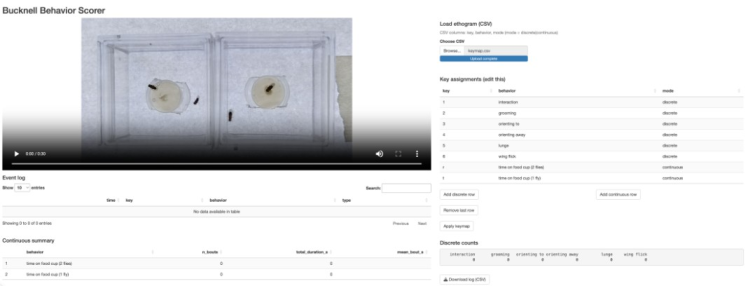
The interface contains two primary columns.
Left Panel: Video and Outputs
The left panel contains:
- Video player
- Event log
- Continuous behavior summary
Video Player
The video player is the scoring target.
Event Log
The event log records every scored event together with its timestamp.
Each entry contains:
- Time
- Key pressed
- Behavior name
- Behavior type
Continuous Summary
The continuous summary table reports:
- Number of bouts
- Total duration
- Mean bout duration
for all continuous behaviors that have been scored.
Right Panel: Ethogram and Controls
The right panel contains:
- Ethogram loader
- Key assignment table
- Apply keymap button
- Running discrete counts
- Download log button
Load Ethogram (CSV)
This is the recommended method for assigning keys to behaviors.
The CSV file should contain three columns:
| Key | Behavior | Mode |
|---|---|---|
| 1 | Lunge | Discrete |
| 2 | Wing_Threat | Discrete |
| G | Grooming | Continuous |
The software supports:
- Up to 10 discrete behaviors
- Up to 5 continuous behaviors
File format
The header row must contain the columns Key, Behavior, and Mode (case-insensitive; extra empty trailing columns from spreadsheet exports are ignored). Rules for each field:
- Key — the value the browser reports for the pressed key (JavaScript
KeyboardEvent.key). This includes single characters (letters, digits, punctuation) and named keys such asEnter,Escape,ArrowLeft,F1. Letter keys are case-sensitive:gandGare different keys (Shift produces the uppercase form). Each key must be unique across the ethogram. Alphanumerics are the safest choice; keys the browser intercepts (e.g.Tab) will not work reliably. - Behavior — any non-empty label. Leading and trailing whitespace are trimmed, but internal spaces are preserved. Because the label is used verbatim as a column identifier in the exported log, underscores (e.g.
Wing_Threat) are recommended over spaces. Behavior names are not required to be unique, but duplicates will collide silently — keep them distinct. - Mode — exactly
discreteorcontinuous(case-insensitive).discreteincrements a counter on each key press;continuoustoggles start/end to record bout duration.
Empty rows are ignored. Violating any of these rules (missing columns, invalid mode, duplicate keys, or exceeding the 10 discrete / 5 continuous limits) causes the ethogram to be rejected with an on-screen error.
Key Assignment Table
Behaviors can also be assigned manually using the editable table.
Apply Keymap
Activates the current key assignments.
Discrete Counts
Displays a running total of all discrete behaviors.
Download Log
Exports the behavioral log as a CSV file.
Part 4: Ethogram Setup
Loading an ethogram CSV is the preferred workflow.
Create a CSV file containing:
| Key | Behavior | Mode |
|---|---|---|
| 1 | Lunge | Discrete |
| 2 | Wing_Threat | Discrete |
| G | Grooming | Continuous |
Save the file as a CSV.
To load the ethogram:
- Click Browse under Choose CSV.
- Select the ethogram file.
- Confirm that the keymap loads correctly.
- Verify that the key assignments appear in the table.
The keymap is applied automatically after loading.
Important
Keys must be unique.
Do not assign the same key to more than one behavior.
Part 5: Manual Key Assignment
If an ethogram CSV is not available, behaviors may be entered manually.
- Click Add discrete row or Add continuous row.
- Enter a key.
- Enter a behavior name.
- Select the scoring mode.
- Click Apply keymap.
Avoid commas in behavior names.
Manual assignment works well but loading a CSV file is generally faster and less prone to error.
Part 6: Scoring Behavior
Keyboard Focus Rule
Keypresses are captured globally unless the cursor is active inside:
- The key assignment table
- A text box
- The video player
Before scoring, click on an empty area of the application window.
A good practice is to perform a test keypress and confirm that the event log updates.
Scoring Discrete Behaviors
Press the assigned key once each time the behavior occurs.
Example:
If:
1 = Lungepress:
1every time a lunge occurs.
The software records:
- Timestamp
- Key pressed
- Behavior name
- Type = Discrete
The running count updates automatically.
Scoring Continuous Behaviors
Press the assigned key once to begin the behavior.
Press the same key again to end the behavior.
Example:
If:
G = Groomingpress:
Gto start grooming and
Gagain to stop grooming.
The software records:
- Start timestamp
- End timestamp
- Bout duration
The continuous summary table updates automatically.
Important
Continuous behaviors use a start/end toggle model.
Each START should be followed by a corresponding END.
Multiple continuous behaviors may overlap as long as they use different keys.
Part 7: Exporting Data
When scoring is complete:
- Click Download log (CSV).
- Save the exported file immediately.
- Rename the file using descriptive metadata.
Example:
Control_MalePair01_ObserverA.csvThe exported file contains:
- Behavioral events
- Timestamps
- Discrete event information
- Continuous bout information
Important
Download and rename the file immediately after scoring each video.
New exports may overwrite previous files if they are not renamed.
Part 8: Troubleshooting
Video Does Not Load
Verify that:
- The video is inside the
wwwfolder. - The file is named exactly
video.mp4. app.Ris located in the application folder.
Correct folder structure:
Bucknell Behavior Scorer/
├── app.R
├── run.R                              # terminal launcher
├── assets/
│   ├── Ethogram.csv                   # example ethogram — copy and edit for your experiment
│   └── behavior_log_2026-02-26.csv    # example scoring output
└── www/
    └── video.mp4
Keypresses Are Not Recorded
Possible cause:
The cursor is still active inside the video player or key assignment table.
Solution:
Click on an empty white area of the application and try again.
Behavior Is Not Counted
Possible causes:
- Key assignment does not exist
- Apply keymap was not clicked
- Duplicate keys prevented activation
Solution:
Verify the key assignment table and reapply the keymap.
Continuous Summary Appears Incorrect
Possible causes:
- A behavior was started but never ended
- The wrong key was used to terminate a behavior
- The keymap was modified during scoring
Solution:
Use clean start/end scoring and avoid changing key assignments after scoring has begun.
Do not modify key assignments after beginning a scoring session. If changes are necessary, restart the application and begin a new scoring session.